
How to cancel, pause, and reactivate your subscription
Learn how to cancel your plan at the end of the cycle, what your options are to “pause” spending, and how to reactivate your subscription whenever you want.
Watch this step in the video · Cancelling the subscription
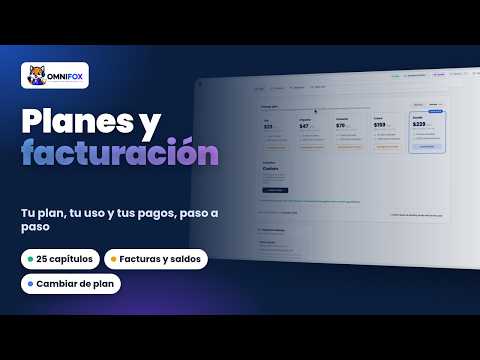
What you'll do
Omnifox lets you manage your subscription from one place. This article shows how to cancel your plan (cancellation takes effect at the end of the cycle, not immediately), how to slow down spending without deleting anything, and how to reactivate when you're ready to come back.
Important: cancelling does not delete your account or your conversations. You keep full access until your next billing date, and your data stays available for whenever you reactivate.
Requirements
- You must be the owner of the organization. Only the owner can change the subscription.
- Your subscription must be active or in trial.
Cancel your subscription
- Open Billing.
- Go to the Plan tab.
- In your current plan card, click Cancel plan.
- Confirm in the Cancel subscription? dialog with Yes, cancel (or choose Keep plan if you change your mind).
The cancellation is scheduled for the end of the cycle: you keep full access until your Next billing date, and you won't be charged again.
Changed your mind before the cycle ends?
While the cancellation is pending, the Plan tab shows a Resume button. Click it and your subscription continues normally, with no extra charge.
"Pause" spending without cancelling
Omnifox doesn't have a freeze button, but you have two ways to spend less without losing anything:
- Move to the cheapest plan (Lite): from Plan → Change plan. The downgrade is scheduled for the end of the cycle (see Understanding scheduled plan changes).
- Cancel and reactivate later: cancel now, stop paying, and come back when you need to. Your contacts and conversations are waiting.
Reactivate your subscription
- Go to Billing → Plan.
- Click Reactivate (if the account is already cancelled) or Resume (if the cancellation was still pending).
- Confirm the plan and, if needed, check your payment method.
How to verify it worked
- The Plan tab shows the updated status: cancellation scheduled, active, or reactivated.
- Check the Next billing date: if you cancelled, no future charge should appear.
If something doesn't work
- I can't see the Cancel plan button: your role isn't owner. Ask the owner to make the change.
- I cancelled by mistake: use Resume before the cycle ends, or Reactivate afterwards.
- A charge still shows up: make sure the cancellation is actually scheduled; the current cycle already billed is not refunded.
Tips
- Before cancelling, export anything you need from Contacts and Reports.
- If you just have spare capacity, consider downgrading instead of cancelling — you keep your operation running.
Related articles
Related articles
-
Plans, billing & subscription
Understand the Lite, Impulsa, Conecta, Crece, Escala and Exclusivo plans, how monthly active contacts (MAC) work, extra contact blocks, and how to upgrade or downgrade.
-
How to change your plan (upgrade or downgrade)
Upgrade or downgrade anytime from Billing and understand how proration works.
-
Plans and what each one includes
This page is generated automatically from the live plan configuration, so it is always up to date. Last updated: .
-
How many AI replies your plan includes and how to estimate what you need
Omnifox AI explained in replies, not tokens: how many each plan includes, what happens when they run out, and an example with 1,000 conversations a month.
-
Plans and billing complete guide
Plans and billing in depth, in 25 chapters: plans, cycle usage, extras, changing plans, payments, invoices, billing details, Omnifox balance, add-ons and cancelling.