
Plans and billing complete guide
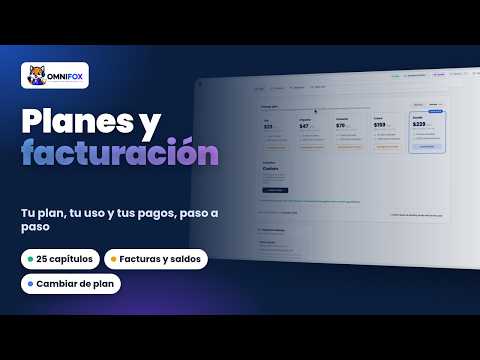
Plans and billing in depth, in 25 chapters: plans, cycle usage, extras, changing plans, payments, invoices, billing details, Omnifox balance, add-ons and cancelling.
Video chapters
- 00:00 Introduction
- 00:34 Where billing is and who sees it Read this step →
- 00:58 The six plans Read this step →
- 01:35 Capacity sheets of each plan Read this step →
- 02:31 Comparing the plans in detail
- 02:59 Your plan and the next charge Read this step →
- 03:22 Cycle usage: contacts, users and channels Read this step →
- 04:05 Workflows and broadcasts Read this step →
- 04:30 AI tokens and top consumers Read this step →
- 05:15 AI usage in detail
- 05:48 Extra users and contacts Read this step →
- 06:15 MAC On-Demand Read this step →
- 06:35 Downgrading
- 07:11 Upgrading and changing the cycle Read this step →
- 07:38 The checkout screen and discount codes Read this step →
- 08:12 Paying by card Read this step →
- 08:36 Payment methods: card and bank transfer Read this step →
- 09:07 Your invoices in PDF Read this step →
- 09:46 Billing details Read this step →
- 10:21 Omnifox balance
- 10:53 Top-ups, auto top-up and movements Read this step →
- 11:22 Meta WhatsApp balance Read this step →
- 11:40 Add-ons
- 12:36 Cancelling the subscription Read this step →
- 12:55 Use cases
- 13:30 If a charge fails and where to get help Read this step →
- 13:53 Wrap-up
This is the complete guide to plans and billing, in 25 chapters: the plans and their capacity sheets, your plan and next charge, cycle usage, extras, changing plans, the checkout screen, payment methods, invoices, billing details, the Omnifox balance, add-ons and cancelling. In the demo no payment is ever completed. The PDF manual has the same chapters with screenshots and steps.
1. Where billing is and who sees it
Billing is in Settings, Billing. At the top you have four tabs: Plan, Invoices, Balances and Add-ons. Everything about your account is in one place.
Admins can see the plan, usage and invoices. But paying, changing plans, cancelling, topping up the balance or editing the billing details is only for the account owner. Agents do not see this section.
2. The six plans
Further down, in Change plan, are Omnifox's six plans: Lite, Impulsa, Conecta, Crece, Escala and Exclusivo. Each card shows the price, the included users and the active contacts per month.
With the selector at the top you see the monthly prices: Lite costs twenty-nine dollars a month, Impulsa fifty-nine, Conecta ninety-nine, Crece one hundred ninety-nine and Escala two hundred ninety-nine.
And on Yearly, every plan has a twenty percent discount, with a single payment per year. Exclusivo is tailor-made: unlimited users, its own service agreement and the option to install it on your servers, and it is bought by talking to sales.
3. Capacity sheets of each plan
Let's review each plan's capacity. Lite is to get started: one user, three channels, one thousand active contacts and thirty thousand AI tokens a month, which is about six hundred replies. It does not include calls.
Impulsa goes up to three users, six channels, two thousand contacts and sixty thousand tokens, and adds WhatsApp and phone calls. Conecta has five users, ten channels, three thousand contacts and one hundred thousand tokens, and adds projects and call recording.
Crece reaches ten users, unlimited channels, three workspaces, four thousand contacts and two hundred thousand tokens, with voice AI, voice menus and the API. And Escala keeps ten users, but goes up to ten workspaces, five thousand contacts and three hundred thousand tokens, with AI translation, live supervisor and SLA policies.
From Impulsa up you can add users and blocks of one thousand contacts without changing plans; we will see it later. Lite does not sell contact blocks.
4. Comparing the plans in detail
To compare everything each plan includes, open the Omnifox pricing page. There each card lists the key features: for example, calls start at Impulsa, AI voice and the API at Crece, and AI translation and the live supervisor at Escala.
If you are not sure which one is right for you, the calculator asks for your users, channels and active contacts and recommends the plan with its exact price. And the detailed comparison link opens the full table, feature by feature.
5. Your plan and the next charge
Back on the Plan tab. The first card shows your plan, its status and what you pay: here, Escala, active, at two thousand eight hundred seventy dollars and forty cents a year.
The second is the next charge: the amount, the date and the cycle, monthly or yearly, and whether add-ons are added to the plan. And in Actions, the Change plan shortcut takes you straight to the list of plans.
6. Cycle usage: contacts, users and channels
Below is the current cycle usage, in real time. Each sheet compares what you use with what your plan includes, with a bar that changes color as you approach the cap.
Active contacts are the contacts your team talked to within the cycle: storing contacts is unlimited, only the ones that were active count. Escala includes five thousand.
Then, the users taken versus the available seats, and the connected channels. On Escala channels are unlimited, so the sheet says so and does not offer to buy more.
What happens when you reach a cap? With users, you cannot invite anyone else until you free a seat or add one. With active contacts, new contacts stop being created, unless you turn on MAC On-Demand. With Manage, on each sheet, you go to the solution.
7. Workflows and broadcasts
The workflows sheet counts the month's runs, separating workflows from voice menus, and shows how many active workflows you have versus the plan maximum. With manage workflows you go straight to the list.
The broadcasts sheet counts the campaigns sent this month and the total recipients. On Escala there is no monthly cap, but each send reaches up to fifty thousand recipients. The counters reset on the renewal date you see on each sheet.
8. AI tokens and top consumers
AI tokens are the monthly allowance that powers all the artificial intelligence: the chatbot, AI voice, the agent assistant, transcriptions, summaries and more. Escala includes three hundred thousand a month.
To give you an idea, three hundred thousand tokens are about six thousand replies. Each reply uses more than it seems, because the AI also reads the agent's instructions, its knowledge base and the conversation. Below, the top consumers tell you where the allowance went. In this account, almost two thirds is used by the text chatbot and one third by live AI calls.
And this option decides what happens at the cap: if it is off, the AI pauses until the next cycle; if you turn it on, it keeps answering and the extra usage is charged to your Omnifox balance. It turns on by itself the first time you top up.
9. AI usage in detail
With See the usage detail you reach AI usage. Here is the current cycle and the previous ones, with the exact period being counted.
Watch this detail: the meter resets on your subscription anniversary, not on the first day of the month. Further down you see usage day by day, by feature, by agent, by channel and by conversation, to know exactly where the allowance goes.
With the cycle selector you compare with previous months. If one month spikes, here you find which agent or channel caused it, and you decide whether to adjust the instructions, change plans or leave the balance on.
10. Extra users and contacts
If you fall short, you do not always need to change plans. On the users sheet, Manage opens Manage users: with plus and minus you choose how many seats you want in total, and Omnifox calculates the prorated charge until the end of the cycle.
Contacts work the same way, in blocks of one thousand active contacts. Lite does not sell extra blocks and plans with unlimited channels do not sell channels. Here we cancel: updating the plan would be the real purchase.
11. MAC On-Demand
MAC On-Demand is the other way out when active contacts fill up. Off, as here, Omnifox stops creating new contacts at the cap.
If you turn it on, contacts beyond the limit keep being created and are charged at the end of the cycle. It is useful during a campaign or high season, so nobody is left unattended. In the demo we leave it off.
12. Downgrading
To downgrade, tap the downgrade button on the card of the plan you want. First you set up the new plan: how many users and contacts you want, with the price of the extras.
With Review change, Omnifox tells you what you have to resolve first: here, removing users, workspaces and workflows that do not fit in Crece. It also lists the features you would lose, such as audit logs or SLA tracking.
Below is the payment summary: the downgrade applies at the end of the cycle you already paid, and from that day you pay the new price. While there are pending points, Schedule downgrade cannot be clicked. We choose Stay on this plan.
13. Upgrading and changing the cycle
Upgrading is immediate: you get the new features right away and, by card, you only pay the prorated difference until the end of the cycle. Escala is the highest plan you can buy on your own; for Exclusivo you talk to sales.
The cycle is also changed here. This account pays yearly, so it offers to switch back to Monthly at the end of the cycle: the change is scheduled for the renewal, nothing is charged today. If you pay monthly, you will see the option to switch to yearly with the twenty percent discount.
14. The checkout screen and discount codes
When you buy a plan, for example at the end of the free trial, you reach the checkout screen: at the top, the plan, the amount and the cycle; below, the payment options available for your account.
If you have a discount code, you type it here and apply it before choosing how to pay. Omnifox shows you how much you pay on the first charge and whether the discount continues on renewals. In the demo we do not apply any.
This same screen is the one that activates your plan at the end of the seven-day free trial. During the trial you cannot buy extras such as users or contacts: the plan is activated first and they are added afterwards.
15. Paying by card
With Card, you go to Stripe's secure checkout page: you see the plan, the price per year and the total due today. Card details are only typed there; Omnifox never sees or stores them.
Once paid, the subscription renews automatically every month or every year with that card. Here we type nothing and go back: Stripe's page is in live mode and we do not use test data.
16. Payment methods: card and bank transfer
The Payment method card shows what you pay with. This account pays by bank transfer: it is a manual payment every cycle, and here you see the date of the next payment.
About seven days before the due date, Omnifox sends you a payment order to renew with the same method: you make the transfer, upload the receipt and the team verifies it within twenty-four to forty-eight hours.
By card, on the other hand, renewal is automatic: here you would see the brand, the last four digits and the Stripe portal button, where you change the card and see your payments. The payment options shown depend on your country and your plan.
17. Your invoices in PDF
The Invoices tab has the history: number, date, amount and status of each invoice. With PDF you download the one you need for your accounting.
This is what the PDF looks like: who issues it, who it is made out to, the date, the detail and the total. Payment orders for one-off purchases and transfer receipts also appear here when you have them.
Do not mix them up: the invoice is the document for the charge, for your accounting. The payment order is the request for a one-off purchase, such as extra users or an add-on, and stays pending until you pay it. And the receipt is the proof that the payment went through.
18. Billing details
Above the invoices are the billing details: who your invoices are made out to and which Omnifox company issues them. If you do not enter them, they are made out to the organization.
With Add billing details you choose whether you invoice a person or a company, the country, the name or company name and the ID. If you choose Ecuador, the ID becomes cédula for people and RUC for companies.
You fill in the address, city, phone and the email where you want to receive the invoices. Changes apply to new invoices; the ones already issued keep their details. Here we cancel without saving.
19. Omnifox balance
The Balances tab has two accounts. The first is the Omnifox balance: an amount in dollars you pay in advance for what goes beyond the plan, such as AI when the allowance runs out, translations or some add-ons.
Here it is at zero, so Omnifox warns that the balance is low and that the option to continue with your balance is off, with a link to go to it.
Do not confuse the balance with the token allowance: the allowance comes included in your plan and renews on its own every cycle; the balance is money you load and it is only used when you need it, for example, when the allowance runs out and the continue option is on.
20. Top-ups, auto top-up and movements
With add credits you choose how much to top up: ten, twenty-five, fifty, one hundred or two hundred fifty dollars, or your own amount. Top-ups of one hundred and two hundred fifty have a ten percent bonus. It is paid once by card; here we close without paying.
Auto top-up charges your saved card when the balance drops below the threshold you choose, for the amount you set, so you never run out of balance. And in Recent movements you see every top-up, usage and refund, with filters.
21. Meta WhatsApp balance
The second account is the Meta WhatsApp balance. It is only used if your WhatsApp number is provided by Omnifox: in that case, Meta charges its messages to that balance.
If you connected your own WhatsApp Business, as in this account, Meta bills you directly and there is nothing to top up here.
22. Add-ons
Add-ons holds the features bought separately from the plan. This account has Co-browsing active, to see the customer's screen from the chat, and Video calls, with their tier, limits and cycle usage.
If you do not have an add-on, here you see its tiers and prices and turn it on. And to drop it, Cancel add-on: it stays until the end of the period and then it is turned off. Here we choose No, keep it.
In Co-browsing, you also decide which agents can start sessions: it is turned on per person in Settings, Members, in the Co-browse column. And Video calls have their own complete guide.
23. Cancelling the subscription
At the end of the Plan tab is the danger zone. Cancel plan does not cut you off right away: you keep access until the end of the period you already paid, and then the account is paused.
Before that date you can resume the subscription with one click, without losing anything. In the demo we choose Keep plan.
24. Use cases
To finish, four everyday situations and where to solve them.
One: your active contacts fill up in the middle of a campaign. Add a block of one thousand from the contacts sheet or turn on MAC On-Demand. Two: new people join the team. Compare the cost of extra users with the next plan, which also brings more features.
Three: the AI runs out of tokens before the end of the month. Check the usage detail, top up the Omnifox balance and leave the continue option on. And four: your accountant asks for the invoices. Enter the billing details once and download the PDFs from the Invoices tab.
25. If a charge fails and where to get help
If a charge fails, Omnifox lets you know by email and you have forty-eight hours to pay before the account is paused; as soon as you pay, it is reactivated automatically.
And if you have questions about your plan or an invoice, the Help Center has a whole plans and billing section, and the support team answers you from the Support button, up here.
Related articles
-
Plans, billing & subscription
Understand the Lite, Impulsa, Conecta, Crece, Escala and Exclusivo plans, how monthly active contacts (MAC) work, extra contact blocks, and how to upgrade or downgrade.
-
How to change your plan (upgrade or downgrade)
Upgrade or downgrade anytime from Billing and understand how proration works.
-
Plans and what each one includes
This page is generated automatically from the live plan configuration, so it is always up to date. Last updated: .
-
How many AI replies your plan includes and how to estimate what you need
Omnifox AI explained in replies, not tokens: how many each plan includes, what happens when they run out, and an example with 1,000 conversations a month.
-
Professional services and the free onboarding video call
New accounts get one free video call of up to 1 hour to get everything running; after that, support over chat and paid services if you need them.