
The Stripe payment portal
Use the Stripe payment portal to update your card, download receipts and manage your subscription without leaving Omnifox.
Watch this step in the video · Paying by card
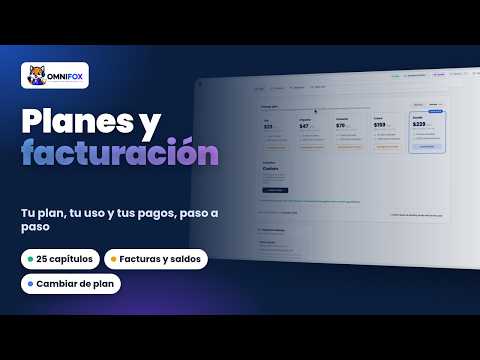
The Payment portal is the secure screen Stripe opens from Omnifox so you can manage your payment method, view receipts and control auto-renewal. You run it yourself, no need to contact support, and your card details never pass through Omnifox servers.
When it shows up
The Payment portal button appears in the header of Billing only if you already have a card saved via Stripe. If you pay by bank transfer or haven't added a card yet, the button is hidden: first activate a plan paying with Stripe — card with automatic renewal.
Steps
- Go to Billing.
- In the top right, click Payment portal.
- The Stripe-hosted portal opens. From there you can:
- Update the card (replace an expiring one or switch to another).
- Download receipts and invoices for past payments.
- Update billing details (name, address).
- Cancel automatic renewal.
- When you're done, close the portal tab and return to Omnifox. Changes reflect within a few seconds.
Verify
Back in Billing, check that the last 4 digits of the card match the new one. Under the Invoices tab you should see the receipts you downloaded.
If it doesn't work
- I don't see the Payment portal button: you have no card saved in Stripe. Activate or renew your plan with a card and the button will appear.
- Demo-mode message: if your instance doesn't yet have Stripe configured with real credentials, the portal won't open and you'll see a demo-mode notice. It's not an account error.
- The portal won't load: usually a pop-up or script blocker; allow opening for the Stripe domain and try again.
Tips
- Update the card before it expires to avoid a failed charge that pauses your plan.
- The Payment portal is only for card payments (Stripe). If you pay by bank transfer, manage everything from the Invoices tab and your transfer receipts.
Related articles
Related articles
-
Plans, billing & subscription
Understand the Lite, Impulsa, Conecta, Crece, Escala and Exclusivo plans, how monthly active contacts (MAC) work, extra contact blocks, and how to upgrade or downgrade.
-
How to change your plan (upgrade or downgrade)
Upgrade or downgrade anytime from Billing and understand how proration works.
-
Plans and what each one includes
This page is generated automatically from the live plan configuration, so it is always up to date. Last updated: .
-
How many AI replies your plan includes and how to estimate what you need
Omnifox AI explained in replies, not tokens: how many each plan includes, what happens when they run out, and an example with 1,000 conversations a month.
-
Plans and billing complete guide
Plans and billing in depth, in 25 chapters: plans, cycle usage, extras, changing plans, payments, invoices, billing details, Omnifox balance, add-ons and cancelling.